
JavaScript is not currently enabled, but is required for full CodeSonar manual search and browse functionality.
If you are viewing this file in your hub's Web GUI, enable JavaScript in your browser: you will also need it for GUI functionality.
If you opened this file directly from disk, your browser may be directly suppressing JavaScript functionality: certain browsers perform this suppression on local files (but not files delivered by web servers) for security reasons.
| CodeSonar® 9.0p0 Hot Tips | CONFIDENTIAL | CodeSecure Inc |
To build a project based on C or C++ source code, CodeSonar monitors a normal build of your application, observes the compilations performed during this normal build, and builds the CodeSonar project accordingly. We refer to this mechanism as build hooking, or simply hooking.
Once the project is built, the CodeSonar analysis phase can run. The analysis results are sent to a hub database, from which they can be viewed with an ordinary web browser.
An overview and further links about building and analyzing CodeSonar projects from software in other languages are provided in section Building.
See also: CodeSonar and the Clang Static Analyzer.
The following diagram shows the CodeSonar build and analysis process for C and C++ projects.
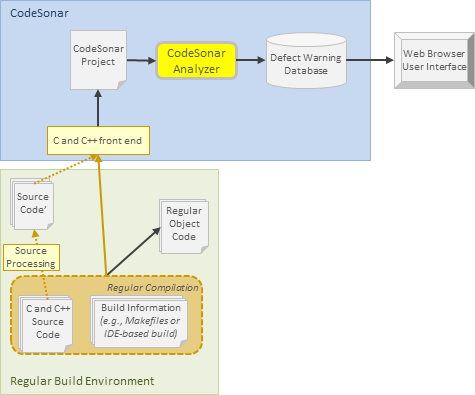
The steps of the build and analysis process are described in Building: Overview. For C and C++ source files, the steps manifest as follows.
| 1. Observe |
The user instructs CodeSonar to observe the
execution of a specified operation or sequence of operations.
There are two ways to set this up:
|
|---|---|
| 2. Execute |
The normal software build process executes. It
will compile one or more source files, using one or more
compilers available on the local system.
Important: Because CodeSonar is observing the normal software build and basing the CodeSonar project on observed compilations, only source files compiled during the observed build will be represented in the project. Therefore, it is important to make sure that the build recompiles every source file. For example:
|
| 3. Recognize Compiler Calls |
Important: Calls to compilers that are not on the list and are not specified by the user will not be recognized, and those compilations will not be accounted for in the project. |
| 4. Update Project | Each time it recognizes a compiler call, CodeSonar updates the project definition to incorporate source files associated with that call. As part of the incorporation process, each source file F.x undergoes a set of source modifications before any preprocessing occurs. |
| Finish Building |
All the source files compiled during the normal build are collected into a single project, even if the build is creating more than one executable. |
Once it has finished building the project, CodeSonar can run the analysis. If you work through the Windows build wizard to screen 4 or build from the command line with analyze, the analysis will run (and send its results to the hub) after the build has finished. The degree of parallelism in the analysis will depend on the setting of ANALYSIS_SLAVES.
When CodeSonar for Binaries is installed, the C/C++ build can be expanded into a mixed build.
CodeSonar offers two mechanisms for building and analyzing projects: a command line and a Windows build wizard.
For Windows-based projects, the choice between building from the command line and using the Windows build wizard depends partly on personal preference and partly on the slight differences between the two build mechanisms. The following table shows the pros and cons of each mechanism.
| PRO | CON | |
|---|---|---|
| Windows build wizard |
|
|
| command line build |
|
|
The build mechanism you choose will be determined partly by the nature of the normal software build, as shown in the following table, and partly on the pros and cons of each approach.
| Normal Software Build System | Command Line Build | Windows Build Wizard |
|---|---|---|
| Non-Windows Command Line | Use normal build command as argument. | not available |
| Non-Windows IDE GUI | Export or manually determine a command line equivalent to the IDE build invocation, and use as argument. | not available |
| Windows Command Line | Use normal build command as argument. | Make sure the command line and any other necessary processes are in the Watch list; run the normal build command from the command line during the Record phase. |
| Windows IDE GUI | Export or manually determine a command line equivalent to the IDE build invocation, and use as argument. | Make sure the IDE and any other necessary processes are in the Watch list; run the normal build command from the IDE during the Record phase. |
As described in Command Line Build/Analysis: Command, the general form of the usual CodeSonar build/analysis command is
The command element is described below; the other parts of the command line are discussed in Command Line Build/Analysis: Elements.
| command |
The command you usually use to build your software project. In
many cases no changes to existing settings are necessary, and
in most remaining cases only one or two CodeSonar build options
are required.
CodeSonar will execute this command, identify all the compilations that ensue, and build the CodeSonar project accordingly. Important: Only compilations resulting from executing this command will be represented in the CodeSonar project. Make sure that old object files and executables are removed (for example, with make clean) if necessary to make sure that all source files are compiled. Some example build commands are listed below. If command is missing, no building takes place and the analysis starts with the pre-existing contents of pfiles-name.prj_files (which will be a child of the project directory). If pfiles-name.prj_files is empty or missing, an error is raised. If you usually invoke your build with a list of commands, you will need to quote the list and include an invocation command: generally cmd /c on Windows and sh -c on other systems. For example:
|
|||||||||||
(Additional command line examples are provided on the following pages: Command Line Build/Analysis, Build and Analysis for Java Projects.
Any build command (or build system) that can be invoked from the command line can be used as the basis for a project. Simply pass the command line build invocation as the command argument to analyze. For example:
The project build and analysis steps can be run separately, as in the following example. The first command instructs CodeSonar to observe the compilation gcc -c myfile.c and update the myproj project accordingly. The second command instructs CodeSonar to analyze myproj and send the results to the default hub.
Note: If your build command is not based on a .exe file, you will need to specify "cmd /c" as part of command. For example:
Note: If you are building your software project with CodeWarrior, see the additional information in section Using CodeSonar With CodeWarrior.
Instructions for using the Windows Build Wizard are provided in Windows Build Wizard Build/Analysis.
| Building | An overview and further links about building and analyzing CodeSonar projects. |
|---|---|
| Command Line Build/Analysis | Information about invoking the CodeSonar build/analysis from the command line. |
| The Build/Analyze Commands | Detailed documentation for codesonar build and codesonar analyze. |
| Windows Build Wizard Build/Analysis | Instructions for using the Windows build wizard. |
| The Windows Build Wizard | Detailed documentation for the Windows build wizard. |
| Build and Analysis for Java Projects | Specific information for build/analysis of projects built (in whole or in part) from Java bytecode. |
| Troubleshooting the Build | Solutions for problems you may encounter during the CodeSonar build/analysis process |
| CodeSonar and the Clang Static Analyzer | Performing a CodeSonar analysis that also includes results from Clang Static Analyzer. |