
JavaScript is not currently enabled, but is required for full CodeSonar manual search and browse functionality.
If you are viewing this file in your hub's Web GUI, enable JavaScript in your browser: you will also need it for GUI functionality.
If you opened this file directly from disk, your browser may be directly suppressing JavaScript functionality: certain browsers perform this suppression on local files (but not files delivered by web servers) for security reasons.
| CodeSonar® 9.0p0 Hot Tips | CONFIDENTIAL | CodeSecure Inc |
Displays the results of analysis searches.
Analyses in the list of search results can involve any language or languages, provided the analyses satisfy the search constraints.
For the results of searches in other domains, see Search Results.
Important Note: the CodeSonar Web GUI makes extensive use of JavaScript. Make sure JavaScript is enabled in your web browser.
The Analysis Search Results page can be reached in any of the following ways.
| From Advanced Search: | Issue a search in the Projects tab |
|---|---|
| From Project or Home: | Issue a search using the simple search tool. |
| From Saved Searches: | Click on a line in the Analyses tab. |
| Output formats | CSV, JSON, XML (analysis_search.xsd) | ||||
|---|---|---|---|---|---|
| Visibility Filter Applied | Visible Analyses | ||||
| RBAC Permissions Needed |
|
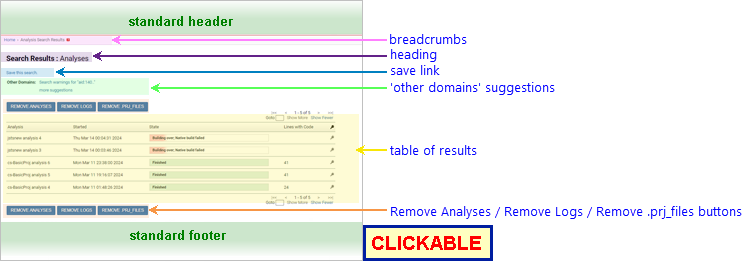
The following annotated screenshot shows the various parts of an Analysis Search Results page.
| Standard Header | See GUI Reference: Standard Header. | ||||||||||||||||||||||||||||||||||||||||||||||||||||||||||||||||||
|---|---|---|---|---|---|---|---|---|---|---|---|---|---|---|---|---|---|---|---|---|---|---|---|---|---|---|---|---|---|---|---|---|---|---|---|---|---|---|---|---|---|---|---|---|---|---|---|---|---|---|---|---|---|---|---|---|---|---|---|---|---|---|---|---|---|---|---|
| Breadcrumbs |
Home > [Other_ProjectTree_Ancestors >]
Proj_Name > Analysis Search Results Home > Analysis Search Results depending on whether or not the search was restricted to a specific project, where
|
||||||||||||||||||||||||||||||||||||||||||||||||||||||||||||||||||
| Page Heading | Proj_Name : Search Results: Analyses Search Results: Analyses depending on whether or not the search was restricted to a specific project. |
||||||||||||||||||||||||||||||||||||||||||||||||||||||||||||||||||
| Save link |
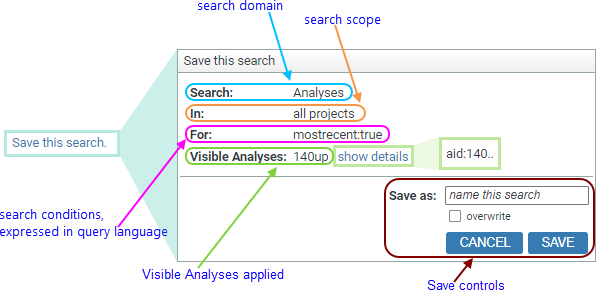
Expands to provide functionality for saving the current search.
See Save a Search for full details.
Saved analysis searches are available (subject to NAMEDSEARCH_EXISTS permissions) in several GUI locations:
|
||||||||||||||||||||||||||||||||||||||||||||||||||||||||||||||||||
| 'Other Domains' suggestions |
Shortcut links to execute the same query in different domains.
|
||||||||||||||||||||||||||||||||||||||||||||||||||||||||||||||||||
| Table of results |
A table describing all analyses that match the search
conditions. Click on any line in the table to navigate to the
corresponding Analysis page.
|
||||||||||||||||||||||||||||||||||||||||||||||||||||||||||||||||||
| Remove Analyses button | Click to remove one or more of the analyses. This button is available above and below the table of results. See Project: Removing Analyses for full instructions. | ||||||||||||||||||||||||||||||||||||||||||||||||||||||||||||||||||
| Remove Logs button | Click to remove the logs from one or more of the analyses. This button is available above and below the table of results. See Project: Remove Logs for full instructions. | ||||||||||||||||||||||||||||||||||||||||||||||||||||||||||||||||||
| Remove .prj_files button | Click to remove the project analysis directory and all contents from one or more of the analyses. This button is available above and below the table of results. See Project: Remove Project Analysis Directories for full instructions. | ||||||||||||||||||||||||||||||||||||||||||||||||||||||||||||||||||
| Standard Footer | See GUI Reference: Standard Footer. | ||||||||||||||||||||||||||||||||||||||||||||||||||||||||||||||||||
See Searching: Saved Searches: Permissions for details of the permissions required to save a named search.
To save a search:
| view an analysis page | Click corresponding row in a result table entry. |
|---|
 *
* in a row to navigate to the