JavaScript is not currently enabled, but is required for full CodeSonar manual search and browse functionality.
If you are viewing this file in your hub's Web GUI, enable JavaScript in your browser: you will also need it for GUI functionality.
If you opened this file directly from disk, your browser may be directly suppressing JavaScript functionality: certain browsers perform this suppression on local files (but not files delivered by web servers) for security reasons.
| CodeSonar® 9.0p0 Hot Tips | CONFIDENTIAL | CodeSecure Inc |
View the licensed limits on CodeSonar resources - enabled users, anonymous sessions, and per-file charges - and the current utilization of those resources.
Important Note: the CodeSonar Web GUI makes extensive use of JavaScript. Make sure JavaScript is enabled in your web browser.
| From Settings: | In the Other Links tab, click License Utilization. |
|---|---|
| From any GUI page with the standard footer: |
In the page footer, click see licensing details. |
| By URL: | http://hub_location/lines.html |
| Output formats | CSV, JSON, XML (lines.xsd) | ||||
|---|---|---|---|---|---|
| Visibility Filter Applied | none | ||||
| RBAC Permissions Needed |
|
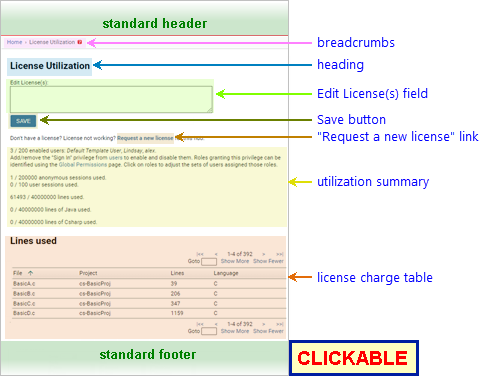
The following annotated screenshot shows the various parts of a License Utilization page.
| Standard Header | See GUI Reference: Standard Header. | ||||||||||
|---|---|---|---|---|---|---|---|---|---|---|---|
| Breadcrumbs | Home > License Utilization where Home links to the GUI Home page. |
||||||||||
| Page Heading | License Utilization | ||||||||||
| Edit License(s) field |
Only active for users with G_LICENSE_WRITE permission.
Otherwise, a Configure License link is provided. If you click this button you will be prompted to sign in as a user with suitable permissions, then returned to the License Utilization page. To install or update a license, enter the license text in this field and click Save. Generally, you will do this if you have received an updated license file from CodeSecure. For full information, see How Licenses Work: License Installation and Updates. |
||||||||||
| Save |
[Requires G_LICENSE_WRITE] Click to save the
contents of the Edit License(s) field and update
licensing for the hub accordingly. If the hub is also reading
licensing information from other locations, those locations are
listed to the right of the button.
Once the license is updated, the License Utilization page will display the limits for the new license. |
||||||||||
| "Request a new license" link |
Click to obtain a new "unsigned (standard) license"
for the machine your hub is running on. CodeSonar will generate
and display the unsigned license, along with a link to request
a signed version of the license from CodeSecure. For full
details, see Installation: Hub License:
Obtaining a License.
If you are using a floating license, do not use the Request a new license link. Instead, follow the instructions at CodeSonar Installation: Floating License: Obtain and Set Up the License. |
||||||||||
| Utilization Summary |
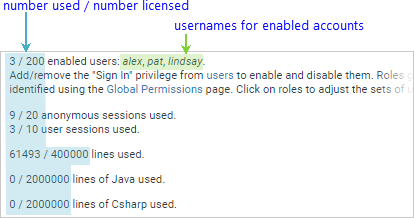
One sentence for each licensed CodeSonar resource.
|
||||||||||
| License Charges Table |
A table listing the license charge for each file on the hub.
|
||||||||||
| Standard Footer | See GUI Reference: Standard Footer. |