JavaScript is not currently enabled, but is required for full CodeSonar manual search and browse functionality.
If you are viewing this file in your hub's Web GUI, enable JavaScript in your browser: you will also need it for GUI functionality.
If you opened this file directly from disk, your browser may be directly suppressing JavaScript functionality: certain browsers perform this suppression on local files (but not files delivered by web servers) for security reasons.
| CodeSonar® 9.0p0 Hot Tips | CONFIDENTIAL | CodeSecure Inc |
Define new templates for management reports to display information from the CodeSonar hub, modify existing management report templates.
Management Reports are available for all analyses, independent of the language or languages involved.
Important Note: the CodeSonar Web GUI makes extensive use of JavaScript. Make sure JavaScript is enabled in your web browser.
| From... | Action | Initial Editor Contents |
|---|---|---|
| Analysis | Expand the Reports section and click new (on the Report Template line). | An empty management report template, with "Analysis" scope selected. |
| Expand the Reports section, select a template name from the pull-down menu, and click edit (on the Report Template line). | The template for the selected report. Note that the menu only lists templates with "Analysis" scope. | |
| Home | Expand the Reports section and click new (on the Report Template line). | An empty management report template, with "Latest Analyses" scope selected. |
| Expand the Reports section, select a template name from the pull-down menu, and click edit (on the Report Template line). | The template for the selected report. Note that the menu only lists templates with "Last Analyses" or "All Analyses" scope. | |
| Project | Expand the Reports section and click new (on the Report Template line). | An empty management report template, with "Latest Analyses" scope selected. selected. |
| Expand the Reports section, select a template name from the pull-down menu, and click edit (on the Report Template line). | The template for the selected report. Note that the menu only lists templates with "Project" scope. | |
| By URL: | http://hub_location/report/template/ | An empty management report template, with no scope setting. |
| Output formats | JSON | ||||
|---|---|---|---|---|---|
| Visibility Filter Applied | none | ||||
| RBAC Permissions Needed |
|
The following annotated screenshot fragment shows the different parts of the report template editor.
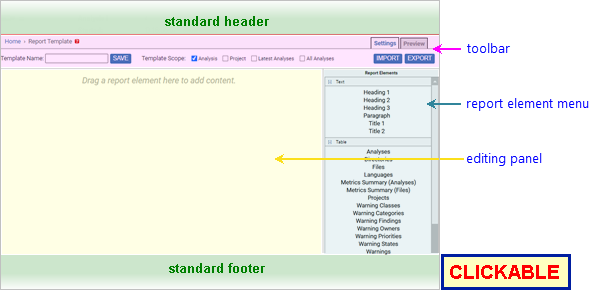
| Standard Header | See GUI Reference: Standard Header. |
|---|---|
| Breadcrumbs |
Home > Report Template : Template_Name Home > Report Template Depending on whether or not the whether a template is currently open in the editor, where
|
| Toolbar | Provides functionality for managing the template as a whole. See full details below. |
| Editing Panel | Displays the current template contents, and allows users to add, remove, and edit template elements. See full details below. |
| Report Element Menu | Provides functionality for adding elements to the report template. See full details below. |
| Standard Footer | See GUI Reference: Standard Footer. |
The toolbar provides functionality for managing the template as a whole.

| save controls |
To save the template, enter a name in the Template Name
field and click Save.
If a template is currently being edited, a Delete Template button is also available.
|
|---|---|
permissions  link link
|
[Only available if a template is currently open in the
editor.] Click to navigate to the Report Template Role-Permissions page for the template. |
| template scope selectors |
Use the checkboxes to select one or more scopes for the
template.
Note that all templates must have at least one scope (otherwise they will not be available from any location in the GUI). If you try to save a template with no scopes selected, an error message will be displayed. |
| Settings and Preview tabs |
The template editor provides two tabs with different views of
the template.
See Management Reports: Permissions for details of the permissions required to preview management reports. |
| Import and Export buttons |
CodeSonar provides template import/export functionality based
on JSON files.
To export the current template to a JSON file:
To import a template from a JSON file:
|
The editing panel is located in the Settings tab. It displays the current template contents, and allows users to add, remove, and edit template elements.
Elements in the template are represented by element placeholders in the editing panel:
| Text | The full text of the element. |
|---|---|
| Table | The table title, followed by a skeleton table that shows the table column headings and a small number of unpopulated table rows. |
| Chart | The chart title, followed by a small image indicating the chart type. |
| Section | A box that indicates the extent of the section, with a label of the form repeat for {{<varname>}} in <typename>, where <varname> is the section metavariable name and <typename> is the section type. |
| Alerts | An "Alerts" heading, followed by a yellow box
containing an alert icon  . . |
| Page Break | A line across the page. |
| List of Figures | The list title, followed by a representative list item with placeholder text "Level 1 Text". |
| List of Tables | The list title, followed by a representative list item with placeholder text "Level 1 Text". |
| Parse Log | The log title, followed by a skeleton parse log entry with a small number of unpopulated rows. |
| Table of Contents | The table title, followed by a nested set of representative list items with placeholder text "Level 1 Text", "Level 2 Text", "Level 3 Text". |
To add a new element to the template:
To remove an element from the template:
To edit an element in the template:
The editor does not currently support relocating template elements directly. If you wish to change the location of a template element:
The process for editing a report template element is the same for all elements: click the element placeholder to open an editing dialog, then use the dialog to make the required changes.
Editing dialogs have a common set of buttons.
| Delete | Remove this element from the template and close the dialog. |
|---|---|
| OK | Accept the specified modifications and close the dialog. |
| Cancel | Discard the specified modifications and close the dialog. |
Editing dialog details: text | table | chart | section | other
The text editing dialog consists of an editing field plus the standard editing dialog buttons.

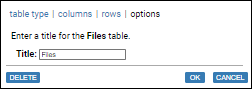
Note that clicking on the title of a table, chart, or section will not open the text editing dialog. Instead, it will open the relevant editing dialog for the table, chart or section. Use the options tab of that dialog to change the title.
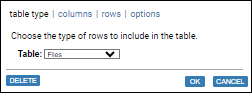
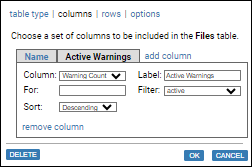
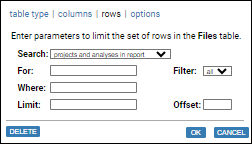
The table editing dialog has four tabs: table type | columns | rows | options
| table type |
The table type tab allows users to change the type of
information displayed in the table.
|
||||||||||||
|---|---|---|---|---|---|---|---|---|---|---|---|---|---|
| columns |
Each table type has a default set of table columns, and default
labels to refer to those columns. The columns tab allows
users to modify this set by adding, removing, and editing
columns, and to specify custom field names to refer to columns.
The tab has one subtab for each column currently included in the section, and an add column link for adding additional columns to the set. Each subtab has the following fields.
|
||||||||||||
| rows |
The rows tab allows users to specify qualitative and
quantitative restrictions on the set of rows that will be
included in the table.
The tab has the following fields.
|
||||||||||||
| options |
Other display options for the table.
|
The chart editing dialog is heavily based on the the standard chart wizard, with the following exceptions.
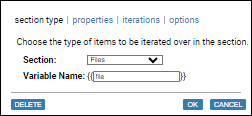
The section editing dialog has four tabs: section type | properties | iterations | options
| section type |
The section type tab allows users to change the section type,
and to specify a custom name for the corresponding section
metavariable.
The tab has Section and Variable Name controls.
|
||||||||||||
|---|---|---|---|---|---|---|---|---|---|---|---|---|---|
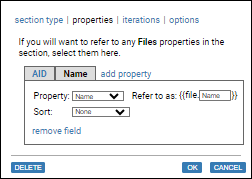
| properties |
By default, CodeSonar selects a small set of section
properties, and chooses default metavariable field names to
refer to those properties.
The properties tab allows users to modify this set by adding, removing, and editing properties, and to specify custom field names to refer to properties.
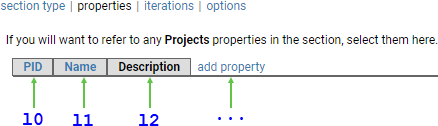
The tab has one subtab for each property currently available in the section, and an add property link for adding additional properties to the available set. Each subtab has the following fields.
To add a new property to the available set:
To remove a property from the available set:
|
||||||||||||
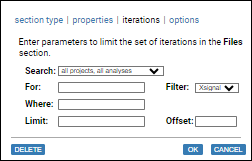
| iterations |
The iterations tab allows users to specify qualitative
and quantitative restrictions on the set of section elements
that will be iterated over.
|
||||||||||||
| options |
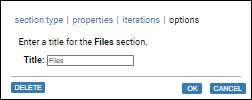
Other display options for the section.
|
The Other report elements also have editing dialogs: Alerts | List of Figures | List of Tables | Page Break | Parse Log | Table of Contents
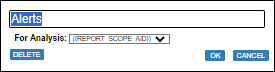
| Alerts |
|
||||||
|---|---|---|---|---|---|---|---|
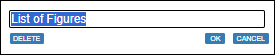
| List of Figures |
|
||||||
| List of Tables |
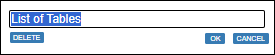
|
||||||
| Page Break |

|
||||||
| Parse Log |
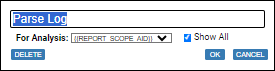
|
||||||
| Table of Contents |
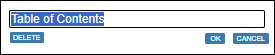
|
For a list of characters that must be escaped in search strings, see CodeSonar Search Languages: Escape Codes.
To escape metavariable values, use the esc filter. For example, suppose you are creating a repeating section with section metavariable {{directory}}. If you want the repeating section to contain a table or chart of directory warnings, you will need a warning search language query that matches all warnings in files whose path contains the directory path. It's important to escape any special characters that may appear in paths, so the query will look something like the following.
or, equivalently,
The report elements menu is located in the Settings tab. It lists all the elements that can be added to the report template. Menu items are organized into groups by type, as described in the following table.
| Menu Item | Report Element | |
|---|---|---|
TextSee also Management Reports: Elements: Text. |
||
| Heading 1 | Large, left-justified heading text. Will be included in the table of contents (if one is included). | |
| Heading 2 | Left-justified heading text, smaller than Heading 1. | |
| Heading 3 | Left-justified heading text, smaller than Heading 2. | |
| Paragraph | Left-justified body text. | |
| Title 1 | Large, centered title text. | |
| Title 2 | Centered title text, smaller than Title 1. | |
TableSee also Management Reports: Elements: Table. |
||
| Analyses | Analysis information, with one line for each analysis. | |
| Directories | Directory statistics, where a directory is considered to be included in an analysis one or more analyzed files is located in that directory. | |
| Files | File information, with one line for each file. | |
| Languages | Language statistics, where a language is considered to be included in an analysis if one or more analyzed files have that language. | |
| Metrics Summary (Analyses) | Metric summary table showing maximum, minimum, and average (mean) values for analysis-granularity metrics. | |
| Metrics Summary (Files) | Metric summary table showing maximum, minimum, and average (mean) values for file-granularity metrics. | |
| Projects | Project information, with one line for each project. | |
| Warning Classes | Warning summary table: warning count for each warning class. | |
| Warning Categories |
Warning summary table: warning count for each warning category. This differs from other warning summary tables in two important ways:
|
|
| Warning Findings | Warning summary table: warning count for each finding. | |
| Warning Owners | Warning summary table: warning count for each owner. | |
| Warning Priorities | Warning summary table: warning count for each priority. | |
| Warning States | Warning summary table: warning count for each state. | |
| Warnings | Warning information, with one line for each warning. | |
ChartSee also Management Reports: Elements: Chart. |
||
| Warnings by Class | Bar chart showing warning count for each warning class. | |
| Warnings by File | Bar chart showing warning count in each file. | |
Section |
||
| Analyses | A repeating analysis section. | |
| Files | A repeating file section. | |
| Projects | A repeating project section. | |
OtherThe Other submenu contains options for adding additional infrastructure to the report, and for inserting supporting information about the analysis. |
||
| Alerts | A table of all alerts issued by an analysis (must be located inside an Analysis Section). | |
| List of Figures | A list of all the charts in the report, in order of appearance. Each chart is listed by its title (as specified in the options tab of the chart editing dialog), with a link to the chart itself. | |
| List of Tables | A list of all the tables in the report, in order of appearance. Each table is listed by its title (as specified in the options tab of the table editing dialog), with a link to the table itself. | |
| Page Break | Inserts a page break in the report. (Affects PDF pagination; rendered as an element in XML.) | |
| Parse Log | The parse log for an analysis (must be located inside an Analysis Section). | |
| Table of Contents | An outline list of all Heading 1, Heading 2, and Heading 3 text in the report. | |
There are two possibilities.