
JavaScript is not currently enabled, but is required for full CodeSonar manual search and browse functionality.
If you are viewing this file in your hub's Web GUI, enable JavaScript in your browser: you will also need it for GUI functionality.
If you opened this file directly from disk, your browser may be directly suppressing JavaScript functionality: certain browsers perform this suppression on local files (but not files delivered by web servers) for security reasons.
| CodeSonar® 9.0p0 Hot Tips | CONFIDENTIAL | CodeSecure Inc |
This page allows users to search the paths to a warning or code location, and displays the results.
The Search Callers page type is available for analyzed C/C++ code only.
Important Note: the CodeSonar Web GUI makes extensive use of JavaScript. Make sure JavaScript is enabled in your web browser.
A Search Callers page can be reached in any of the following ways.
| From... | Action | Page Mode |
|---|---|---|
| Warning
Report Extended Warning Report |
Expand the warning details section and click tabular (on the Explore Callers line). | Warning |
| Explore Callers | Click Search Callers. | Matches the Explore Callers page mode. |
| Information
Window (on any applicable page) |
Click the tabular link under
the Call Tree label. (Will be present on function call sites and function entry points.) |
Ordinary |
| Click the tabular link under
the <token> is tainted [...] Find Source
label. (Will be present for tainted tokens.) |
Taint | |
| Click a tabular link under
the <token> is tainted [...] Check Taint in
Warning Context label. (Will be present for tainted tokens in Warning Reports and in the Line Content column of any table of warnings.) |
Taint+Warning |
| Output formats | none | ||
|---|---|---|---|
| Visibility Filter Applied | none | ||
| RBAC Permissions Needed |
|
The following annotated screenshot shows the various parts of a Search Callers page.
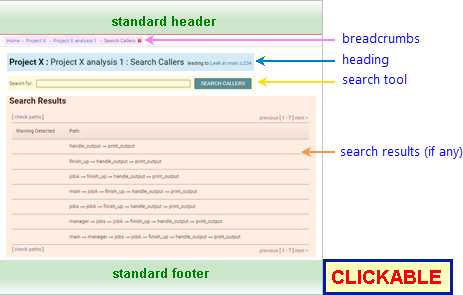
See CodeSonar GUI Reference: Standard Header.
Home > [Other_ProjectTree_Ancestors >] Project_Name > Analysis_Name > Search Callers
Where
Project_Name : Analysis_Name : Search Callers leading to <location/mode>
| Project_Name | The project for which the warning was issued. | ||||||||||
|---|---|---|---|---|---|---|---|---|---|---|---|
| Analysis_Name | The analysis in which the warning was issued. | ||||||||||
| Warning_Class | Links to the warning report for the warning. | ||||||||||
| <location/mode> |
Is a short descriptive string that depends on the page mode.
|
A Search Callers query is a space-separated list of substrings to be (case-sensitive) matched against the procedure names appearing in paths. To specify that substring S should be excluded, use -S. For example:
| query | ...matches... | ...but not |
|---|---|---|
| eval -print | evalfile → main eval_and_free → next → main |
eval_and_free → print → main |
To search the paths to a warning:
The page will expand to display the search results.
Search results are presented in a table, unless there are no paths matching the query.
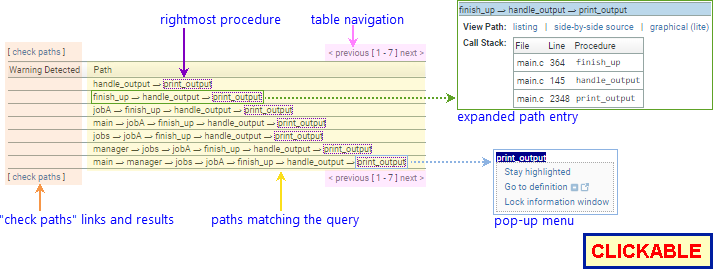
| table navigation | Indicates which of the search results are shown on the current page. If there are multiple pages of results, < previous and next > links provide navigation to other pages. | ||||||||||
|---|---|---|---|---|---|---|---|---|---|---|---|
| paths matching the query | Each row of the table contains a call graph path that matches the query. If the query contained a single non-negated substring, function names that exactly match the substring are highlighted. Click any path to view its expanded path entry. | ||||||||||
| rightmost procedure | The rightmost procedure is the same for every path in the table, and corresponds to the first procedure in the warning's core path. The remainder of the core path (if any) is not explicitly displayed. | ||||||||||
| "check paths" links and results | Click check paths to perform path checking for the current page of results. For full details, see Checking Paths: Search Callers. | ||||||||||
| expanded path entry |
Click on any table row to view the expanded path entry; click
again to hide it (note that clicking directly on a procedure
name in the row will open a pop-up
menu instead). The expanded path entry contains additional
information and functionality for the path:
|
||||||||||
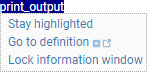
| pop-up menu |
Right-click any procedure name in the table to open a pop-up
menu.
|
||||||||||
| information window | The information window is available on this page. Hover over a node in the graph to display information about the corresponding procedure. |
See CodeSonar GUI Reference: Standard Footer
Depending on the context in which you navigated to the Search Callers page, it will be in one of four modes.
| Mode | Page Behavior |
|---|---|
| Ordinary | No additional functionality. Path checking is not available. |
| Taint |
Path checking is performed with respect to taint
propagation.
|
| Warning |
Path checking is performed with respect to warning
feasibility.
|
| Taint+Warning |
Path checking is available for taint
propagation in warning context.
|
| view the standard warning report | Click the warning ID in the page breadcrumbs or the warning class name in the page heading. |
|---|---|
| view a path in an extended warning report | Click the warning report link in the expanded path entry. |
| view a path in the explore callers page | Click the graphical (lite) link in the expanded path entry. |
| view the side by side code listings for a path | Click the side-by-side source link in the expanded path entry. |
| view a source listing (scrolled to a procedure definition) | Right-click an occurrence of the procedure name and select Go to definition from the pop-up menu that opens. |
| view parent analysis information | Click the analysis name in the page breadcrumbs. |
| view parent project information | Click the project name in the page breadcrumbs. |
 Navigate in the
current tab.
Navigate in the
current tab. Navigate in a new tab.