
JavaScript is not currently enabled, but is required for full CodeSonar manual search and browse functionality.
If you are viewing this file in your hub's Web GUI, enable JavaScript in your browser: you will also need it for GUI functionality.
If you opened this file directly from disk, your browser may be directly suppressing JavaScript functionality: certain browsers perform this suppression on local files (but not files delivered by web servers) for security reasons.
| CodeSonar® 9.0p0 Hot Tips | CONFIDENTIAL | CodeSecure Inc |
The Security Dashboard provides an overview of current hub security settings and provides links to functionality for changing those settings.
Important Note: the CodeSonar Web GUI makes extensive use of JavaScript. Make sure JavaScript is enabled in your web browser.
| From Settings: | Click the Security Dashboard link in the User Administration tab. |
|---|---|
| By URL: | http://hub_location/security_dashboard.html |
| Output formats | none | ||
|---|---|---|---|
| Visibility Filter Applied | none | ||
| RBAC Permissions Needed |
|
The following annotated screenshot shows the various parts of the Security Dashboard page.
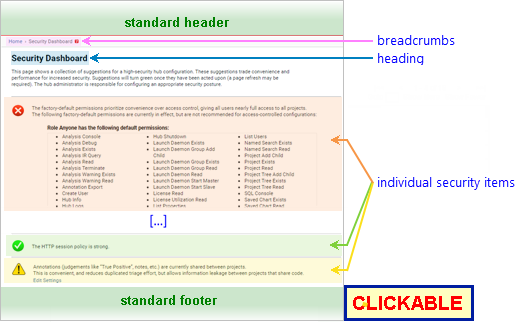
| Standard Header | See GUI Reference: Standard Header. |
|---|---|
| Breadcrumbs | Home > Security Dashboard Where Home links to the GUI Home page. |
| Page Heading | Security suggestions for hub |
| Individual Security Items | See Individual Security Items: Details, below. |
| Standard Footer | See GUI Reference: Standard Footer. |
The security dashboard presents a series of security items, each related to a particular aspect of hub security. Each item is marked with an icon summarizing its current state.

|
One or more issues remain to be addressed for this item, and could result in serious security problems. |

|
One or more issues remain to be addressed for this item; the resulting security problems are less serious than those with the "red" designation. The recommended changes will improve security but may have other drawbacks. |

|
No further action is required for this item. |
The individual items are described in the following table.
| Item Subject | Security Recommendation(s) | Action (if needed) |
|---|---|---|
| Role-Permissions |
Built-in roles Anyone and User should not have broad access to the
information on the hub.
A new (or newly-upgraded) hub will assign default permissions to these roles: many of these defaults should be removed if security is a concern. |
Click the Restrict Permissions button to remove the
direct assignments listed in the tables in this section.
If you have adjusted one or both of these roles to have a parent role, they may still have one or more of the listed permissions through role inheritance. In this situation, you will need to take additional steps to remove the permissions in question: either adjust the role ancestors for Anyone/User, or adjust the permissions assigned to the ancestor. For detailed instructions, see Task: Lock Down A Hub: Additional Steps. |
| HTTPS | The hub should be configured to use HTTPS. | Click Change HTTP Settings to navigate to the Configure HTTPS page, then use the Server Certificate Configuration form to set up a TLS hub server certificate. For best security, we recommend purchasing a hub server certificate from a trusted certificate authority. |
| http:// URLs should not be redirected to the https:// equivalents. | Click Edit HTTPS Settings to navigate to the Configure HTTPS page, then select always fail from the menu in the "HTTP Configuration" section and click the Reconfigure HTTPS button. | |
| Database Using TLS | Communication between the hub and the hub database should use TLS. |
Click Edit Settings To Use TLS For Database
Communication to navigate to the Settings: HTTP tab, then select
the Use TLS for
database communication? checkbox and click the
Update button.
You will need to restart the hub for this change to take effect. TLS database communication cannot be set up from satellite hubs, only from primary hubs. |
| Password Policy |
Recommended minimums:
|
Click Change Password Policy to navigate to the Settings: Password Policy tab, then adjust the settings as needed and click the Update button. |
| HTTP Session Policy | HTTP session timeout ≤ 900 seconds | Click Change Session Policy to navigate to the Settings: HTTP tab, then adjust the HTTP Session Timeout as needed and click the Update button. |
| Annotation Sharing | Warning groups should have project scope. | Click Edit Settings to navigate to the Settings: Analysis tab, then deselect the Share annotations between projects checkbox and click the Update button. |
| to Configure HTTPS | Click the Change HTTP Settings or Edit HTTPS Settings link. |
|---|---|
| to Settings (various tabs) | Click links in corresponding security items (as noted above). |