
JavaScript is not currently enabled, but is required for full CodeSonar manual search and browse functionality.
If you are viewing this file in your hub's Web GUI, enable JavaScript in your browser: you will also need it for GUI functionality.
If you opened this file directly from disk, your browser may be directly suppressing JavaScript functionality: certain browsers perform this suppression on local files (but not files delivered by web servers) for security reasons.
| CodeSonar® 9.0p0 Hot Tips | CONFIDENTIAL | CodeSecure Inc |
Manage the user certificates for
a single hub user
account.
Note that additional
requirements must also be met in order for a user to sign in
with these certificates.
Important Note: the CodeSonar Web GUI makes extensive use of JavaScript. Make sure JavaScript is enabled in your web browser.
| From Account Editor | In the Account Settings
tab, click Manage Certificates. This link will only be available if HTTPS is enabled for the hub. |
|---|---|
| From Settings | In the Account tab, click
Manage My Certificates. This link will only be available if HTTPS is enabled for the hub. |
| by URL: | http://hub_location/user/user_id-certs.html |
| Output formats | CSV, JSON, XML (user_certs.xsd) | ||||
|---|---|---|---|---|---|
| Visibility Filter Applied | none | ||||
| RBAC Permissions Needed |
|
The following annotated screenshot shows the various parts of a User Certificates page.
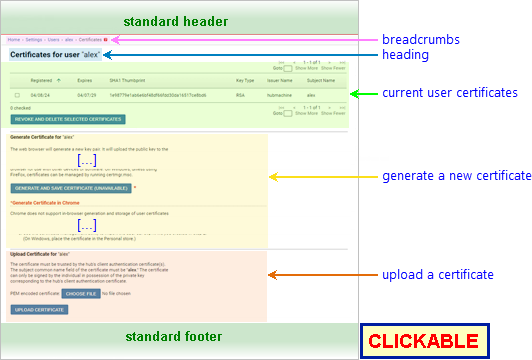
| Standard Header | See GUI Reference: Standard Header. | ||||||||||||||||||||||||||||||||||||||||||||
|---|---|---|---|---|---|---|---|---|---|---|---|---|---|---|---|---|---|---|---|---|---|---|---|---|---|---|---|---|---|---|---|---|---|---|---|---|---|---|---|---|---|---|---|---|---|
| Breadcrumbs |
Home > Settings > Users > user_name >
Certificates Where
|
||||||||||||||||||||||||||||||||||||||||||||
| Page Heading | Certificates for user
"user_name" Where user_name identifies the user whose certificates are currently displayed. |
||||||||||||||||||||||||||||||||||||||||||||
| Current User Certificates |
A table describing all user certificates currently
stored for the user.
|
||||||||||||||||||||||||||||||||||||||||||||
| Generate a Certificate |
Functionality for issuing user certificates from the hub: only
available if the hub's client
authentication key configuration includes a private
key. This functionality is also available through the codesonar generate-hub-cert command. To generate a certificate, click the Generate and Save Certificate button. Your browser will generate a certificate signing request and private key based on hub user account properties and the hub's HTTPS configuration. It will then upload the certificate signing request to the hub for signing. Assuming the request is granted, the hub will save the resulting certificate and send it back to the browser. The browser will store the private key and certificate locally. The private key will not be uploaded to the hub. [Browser note] The majority of commonly-used browsers do not readily support in-browser generation and storage of user certificates. If your browser is one of these, the Generate and Save Certificate functionality will not be available. Instead, follow the procedure for Manually Generating and Uploading User Certificates. [Windows Internet Explorer note] Support for Internet
Explorer is deprecated as of CodeSonar 7.1p0.
|
||||||||||||||||||||||||||||||||||||||||||||
| Upload a Certificate |
Functionality for uploading an existing user certificate. This will be your only option for adding user certificates if the hub is not configured to issue them. To upload a certificate:
You may need to take additional steps to register the certificate with your browser: see TLS Certificates: Managing Your User Certificates and Keys for details. |
||||||||||||||||||||||||||||||||||||||||||||
| Standard Footer | See GUI Reference: Standard Footer. |
To revoke and delete one or more of the certificates in the table of current user certificates:
The page will update to show a confirmation message, and the selected certificates will be removed from the table.
Note that removing a certificate from a user's set of current user certificates is not necessarily sufficient to prevent the user from signing in with that certificate: it may still be possible for the user to present it for authentication through a third party authentication plug-in.