JavaScript is not currently enabled, but is required for full CodeSonar manual search and browse functionality.
If you are viewing this file in your hub's Web GUI, enable JavaScript in your browser: you will also need it for GUI functionality.
If you opened this file directly from disk, your browser may be directly suppressing JavaScript functionality: certain browsers perform this suppression on local files (but not files delivered by web servers) for security reasons.
| CodeSonar® 9.0p0 Hot Tips | CONFIDENTIAL | CodeSecure Inc |
This page contains information about the assigned roles for a single hub user account. It provides functionality for adding and removing direct role assignments.
Important: If you are using a hub authentication plug-in that updates a user's role assignments at login time, a role that you remove from a user on this page will be re-added to that role the next time they sign in if the plug-in determines they should have that role. There are two main cases where an authentication plug-in can have this behavior: either the LDAP plug-in has been installed and configured with one or more Role Mapping List entries, or a custom authentication plug-in implements one or more of get_user()/get_user_from_cert()/get_user_from_request() with a return value that includes a list of roles.
Important Note: the CodeSonar Web GUI makes extensive use of JavaScript. Make sure JavaScript is enabled in your web browser.
| From Account Editor: | In the Account Settings tab, click View and Edit Roles. |
|---|---|
| From Role Users: | Click a row in the table of users. |
| From Settings: | In the Account tab, click View and Edit Roles. |
| by URL: | http://hub_location/user/user_id-roles.html |
| Output formats | CSV, JSON, XML (user_roles.xsd) | ||||
|---|---|---|---|---|---|
| Visibility Filter Applied | none | ||||
| RBAC Permissions Needed |
|
The following annotated screenshot shows the various parts of a User Roles page.
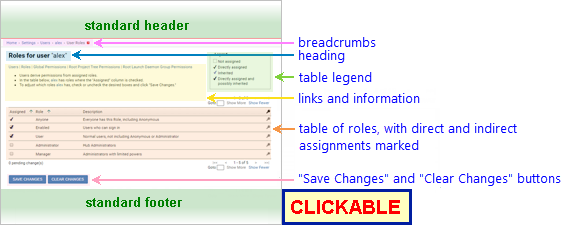
| Standard Header | See GUI Reference: Standard Header. | ||||||||||
|---|---|---|---|---|---|---|---|---|---|---|---|
| Breadcrumbs |
Home > Settings > Users > User_Name >
User Roles Where
|
||||||||||
| Page Heading | Roles for user "User_Name" | ||||||||||
| Links and Role Details | Links to other RBAC-related pages: Users, Roles, Global Role-Permissions, Root Project Tree Permissions, Root Launch Daemon Group Permissions. The latter two links are to the Resource Role-Permissions pages for the root project tree and root launchd group, respectively. | ||||||||||
| Role Table |
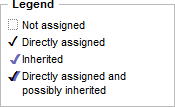
A table with one row for each role. Click a role name, ID, or description to navigate to the corresponding Role Users page.
The table has standard pagination controls. The available table columns are as follows. Columns displayed by default are marked with an asterisk (*).
|
||||||||||
| "Save Changes" and "Clear Changes" buttons |
If you have clicked in one or more of the Assigned cells to add or remove direct assignments, the "<num> pending change(s)" notification under the table will update to show how many changes you have made since you loaded or reloaded the page. Click Save Changes to save your changes and reload the page to show the effects of your changes.
|
||||||||||
| Standard Footer | See GUI Reference: Standard Footer. |
| to Global Role-Permissions | Click Global Permissions in the link bar (under the page heading). |
|---|---|
| to Manage Users | Click Users in the link bar (under the page heading). |
| to Roles | Click Roles in the link bar (under the page heading). |
| to Role Users | Click the role name, ID, or description in the table. |