Task: Sanity Check an Analysis Run

There are a lot of things that can go wrong when analyzing a code base for the first time. It is good practice to verify that an analysis, for the most part, went through OK before spending time reviewing the results. Some common problems are:


Method

  1. Wait for the Analysis State to reach any of the following states: "Building over; Awaiting analysis or more building"; "Stalled"; "Linking"; "Enumerating Languages"; "Building Procedure List"; "Analyzing Translation Units Serially"; "Topologically Sorting Procedures"; "Analyzing Translation Units"; "Analyzing"; "Finished". The Analysis State can be seen on the Analysis page, among others.
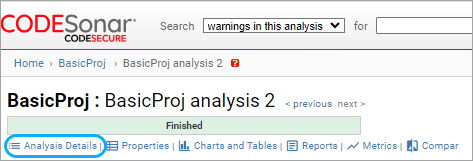
  2. Click the Analysis Details link under the page heading to display more information about the analysis.

    screenshot: analysis page with location of show logs link marked

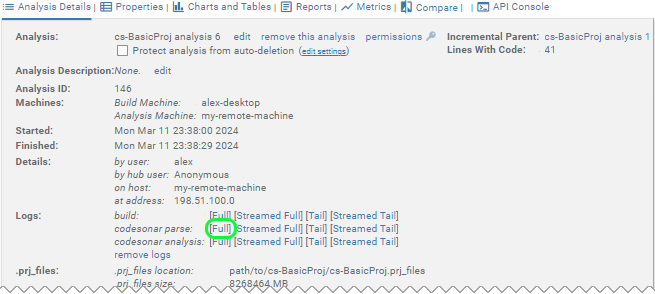
  3. In the Logs section, select Full from the codesonar parse line.

    screenshot: analysis page with expanded logs table marked

  4. Verify that the compilation units (C and CPP files) you expect to be in the project appear on this page. If not, you may want to check that the correct compiler model is specified and that the real compiler is actually being executed by the build system.
  5. Verify that there are no red shaded lines on this page. Red shaded lines are parse errors. If there are parse errors, you should examine the first error first. Be aware that subsequent errors may cascade from the first error. Parse errors can frequently be corrected by adding -I or -D flags to the EDG_FRONTEND_OPTIONS_APPEND option in the project configuration file.

    In extreme cases, you may need to make code edits. When CodeSonar parses a file, it defines the symbol __CODESONAR__, so you may wish to use #ifdef __CODESONAR__ around code edits that were made for CodeSonar.

  6. Wait for the Analysis State to reach any of the following states: "Topologically Sorting Procedures"; "Analyzing"; "Finished". The Analysis State can be seen on the Analysis page, among others. If this never happens, then you have a problem and should consult all three log tails.
  7. Verify that the line counts for this project are in the correct ball park. The total line count can be seen in the table on the Project page, individual file line counts can be seen on the Analysis Files page.
  8. If you determine that something is wrong, then you must re-build and re-analyze the project. If your build system supports incremental builds and is sensitive to all the inputs you have modified, then some time can be saved by just deleting the project's .prj file, and re-issuing the original analysis command. Otherwise, you should issue a clean command to your build system and then reissue the analysis command.

Links