JavaScript is not currently enabled, but is required for full CodeSonar manual search and browse functionality.
If you are viewing this file in your hub's Web GUI, enable JavaScript in your browser: you will also need it for GUI functionality.
If you opened this file directly from disk, your browser may be directly suppressing JavaScript functionality: certain browsers perform this suppression on local files (but not files delivered by web servers) for security reasons.
| CodeSonar® 9.0p0 Hot Tips | CONFIDENTIAL | CodeSecure Inc |
Once you have carried out a CodeSonar analysis, you can view the results on an Analysis page in the CodeSonar Web GUI.
In most cases, the most interesting information on this page will be the list of warnings issued by the analysis. However, the page includes other useful information, including:
What do you want to do?
| latest analysis | View the results of the most recent analysis for a project. |
|---|---|
| older analysis | View the results of an older analysis of a project. |
In both of these cases, the analysis results will be displayed on an Analysis page.
In most cases the most recent analysis is the most important, since it reflects the current state of the software project most accurately.
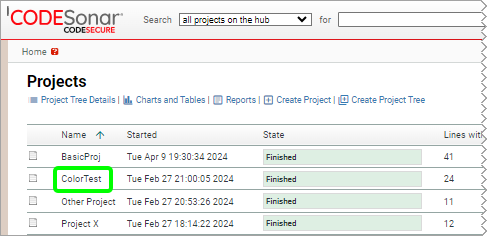
With default hub analysis settings, the most recent analysis for every project is available from the CodeSonar home page. If the hub settings have been changed, you will need to perform one additional navigation step. Both cases are covered below.
The Analysis page for the most recent analysis of the project will open, unless the hub has been configured to navigate to the Project page instead.
If the Project page opened instead of an Analysis page, navigate to the most recent analysis from there:
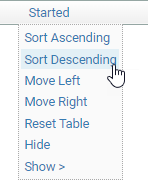
The table rows will be sorted in descending order by the
timestamp at which the analysis started, and a  icon will be shown
next to the Started column header to indicate the current table
sort order.
icon will be shown
next to the Started column header to indicate the current table
sort order.
While the most recent analysis is usually the most interesting, there are some cases in which the results of older analyses are also useful. For example, you might want to review the effects of a series of modifications to the software project.
The Project page lists all analyses that have ever been carried out on the project.
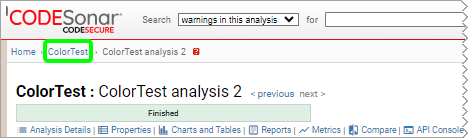
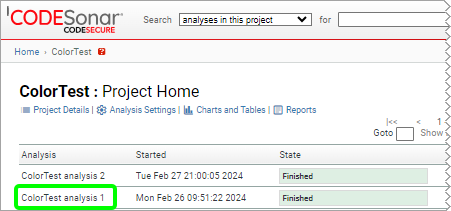
The Analysis page for the selected analysis will open.