Task: Change a Project Name or Description
You will need the following permissions to change the name or description
for a particular project P.
To change the name for a project:
- Decide on a new name.
Note that project names must be unique: the new name cannot be the
same as the name of an existing project for which you have PROJECT_EXISTS permission.
- If the CodeSonar Web GUI is not already open, open it now.
- If you are not already signed into a hub user account that has
sufficient permissions for this task, sign in
now.
- Navigate to the Project page for
the project whose name you want to change.
- Expand the Project Details section of the page, if it is
not already expanded.
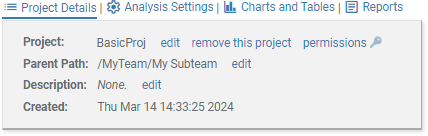
- Click edit (next to the
current name). An editing form will open, as in the example below.

The text field will contain the current project name.
- Enter a new name (or edit the existing one) in the text
field.
- Click Save to save your
changes, or Cancel to cancel the
changes and close the editing form.
- The Project page will be redisplayed.
- If your change was successful, the page will now display
the new project name.
Note that changing the project name will not automatically
update the names of previous analyses, although names
generated for future analyses will be based on the new
project name. Note also that saved searches that
previously matched this project name may no longer match it
(and ones that previously did not match may now do so).
- If your change failed because your new name caused
conflicts (for example, because another project already has
that name, or because someone else tried to change the name at
the same time), CodeSonar will display an error message under
the page heading.
The procedure for changing a project's description is very
similar to that for changing its name. The
differences are as follows.
- Instead of clicking the edit
link next to Project, click the
one next to Description.

- Descriptions do not have to be unique, so your change will not
fail if another project already has the same description.