Task: See How Results Have Changed After Upgrading CodeSonar
This task will use the following for
brevity.
- interface:hubport is your hub
location.
- hubdir is your hub
directory.
- projname is the name of
the project you are analyzing.
- Examples are based on a project built with make. Substitute your own build command and
full rebuild mechanism as appropriate.
This task requires that you have analyzed the
project before upgrading. Work through the following steps before
upgrading CodeSonar.
- Start the hub, if it is not already running.
codesonar hub-start hubdir
interface:hubport
- In order to see how the analysis results have changed, you will
need analysis results for the latest version of projname. If you do not already have
such results, perform a CodeSonar
build/analysis of projname and send the results to your
hub. For example:
codesonar analyze projname interface:port
make
- If you are currently signed in to the hub, sign out.
Once you have a hub with baseline results and are ready to
upgrade, proceed as follows.
-
Shut down the
hub.
codesonar hub-stop interface:hubport
(You may be prompted for hub user account
credentials.)
- Upgrade CodeSonar on the hub machine.
- See the Installation
section for full details.
- You may also need to refresh the
CodeSonar license.
- If you are not installing the new version of CodeSonar in
the same place you stored the old version, make sure you update
your PATH environment variable.
- Upgrade CodeSonar on the machine you use to run the build/analysis, if this
is different to the hub machine.
- On the hub machine, verify that your PATH setting is enabling
your system to find the new version of CodeSonar.
which codesonar
- On the hub machine, start the hub.
codesonar hub-start hubdir
interface:hubport
As part of the hub starting process, CodeSonar will upgrade the
hub database to work properly with the new version of CodeSonar.
Depending on the size of the database, this may take several
minutes.
- On the build/analysis machine, verify that your PATH setting is
enabling your system to find the new version of CodeSonar.
which codesonar
- Perform a CodeSonar build/analysis based on a full rebuild of
projname. For example:
make clean
codesonar analyze projname interface:port
make
- Open the web GUI and
list the
analyses for projname.
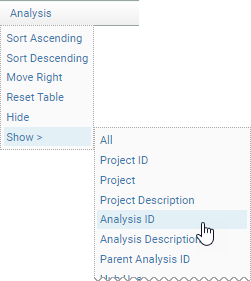
- Click the Analysis table
heading to show a table menu, then select Show > Analysis ID to add the Analysis ID
column to the table.
- The most recent analysis is the one you performed with the new
version of CodeSonar. Note its analysis ID. Call this
new_id.
- The next-most-recent analysis is your baseline analysis. Note
its analysis ID. Call this old_id.
- Construct the search string:
aid=new_id DIFFERENCE aid=old_id
- Paste the search string into the search field, select
warnings in all projects from the
search domain/scope menu, and click Search.
A search results page will open.
- Select all from the Visible Warnings menu.
The search results page now displays all the representative
instances of warnings found in the new analysis but not the
baseline analysis.
- If you want to be able to access this search from the Visible
Warnings menu in future, save it as a
named search.
- Conversely, to see the representative instances of warnings
found in the baseline analysis but not the new analysis:
- Construct the search string:
aid=old_id DIFFERENCE aid=new_id
- Paste the search string into the search field, select
warnings in all projects from
the domain/scope menu, and click Search.
- Select all from the
Visible
Warnings menu.
Related tasks
Using CodeSonar