
JavaScript is not currently enabled, but is required for full CodeSonar manual search and browse functionality.
If you are viewing this file in your hub's Web GUI, enable JavaScript in your browser: you will also need it for GUI functionality.
If you opened this file directly from disk, your browser may be directly suppressing JavaScript functionality: certain browsers perform this suppression on local files (but not files delivered by web servers) for security reasons.
| CodeSonar® 9.0p0 Hot Tips | CONFIDENTIAL | CodeSecure Inc |
By default, CodeSonar will run as a Windows Service on Windows machines. Running as a service provides several advantages, but is not required; users can specify that CodeSonar should be run without services.
Note in particular that Windows Services do not have access to mapped network drives. If you are analyzing files stored on mapped drives, you should run without services.
By default, CodeSonar will run as a Windows service on Windows machines. This provides several advantages for managing the CodeSonar hub and launch daemon:
| Windows Build Wizard | On screen 1, make sure that Use Services is selected (it will be selected by default). |
|---|---|
| Command Line Build | No special actions are necessary. |
The first time you run CodeSonar as a Windows service, you may need to provide authentication. If so, a dialog will be displayed during the build process.
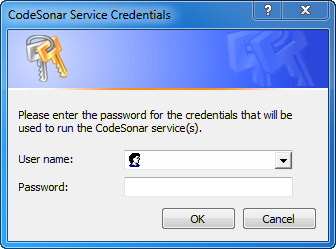
The Windows credentials that you use to authenticate a newly-created CodeSonar service must be for an account with Windows "Administrator" privileges for the current machine.
If you have authenticated a CodeSonar service with a Windows account that has insufficient privileges, you can change the service owner.
The CodeSonar hub and launch daemon can be run without services.
| Hub |
Use the -no-services option to
the codesonar hub-start command. For
example:
codesonar hub-start -no-services myhubdir localhost:7340
If you are starting a hub with the CodeSonar configuration tool, the tool
will ask you to specify whether or not you wish to run the hub
as a service.
|
||||
|---|---|---|---|---|---|
| Launch Daemon, explicitly started |
Use the -no-services option to
the codesonar install-launchd command.
For example:
codesonar install-launchd -no-services localhost:7340
|
||||
| Launch Daemon, implicitly started by analysis |
(The built project and analysis results are not affected by the
absence of services, but the advantages
described above will not apply.)
|
To uninstall the CodeSonar services, use the following command line.
If you have services for multiple installations of CodeSonar on a machine, you can uninstall all of them at once:
This functionality is also available through the CodeSonar configuration tool.
Microsoft provides instructions to Start, stop, pause, resume, or restart a service.
There are a number of cases in which you might need to change the owner of the hub service. For example:
To change the service owner, do the following.
When the service next restarts, its owner will change to your new selection.